- Home
- Government
- Departments
- Finance
- Payment Options
- Online Payments
Online Payments
Online Portal FAQs
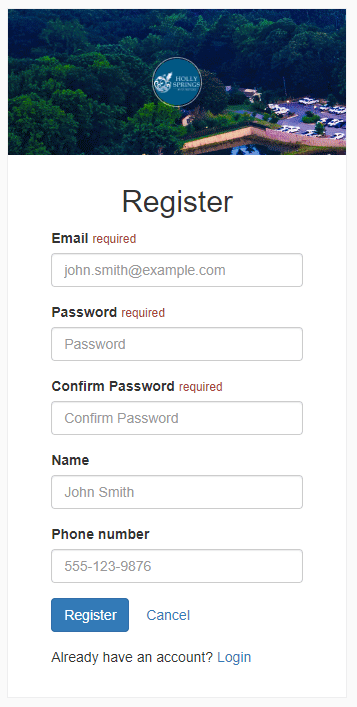
If you receive an error after you click the blue “Register” button, try entering the primary account holder’s middle initial in the “Name” box or spelling out the full middle name.
For example, instead of “John Smith,” try “John A Smith” or "John Anthony Smith"
To set up auto pay once you are logged into the portal:
- Locate "Available Services" then click "Utility Billing".
- On the Utility Billing page, click the "Enroll in Auto Pay" button in the main section of this page.
- On the Enroll in Auto Pay page, click "Enroll" beside the utility account you wish to select for automatic payments.
- Then, choose your preferred payment method, and click on "Enroll Now."
- You may pay with a Visa, Mastercard, Discover, or enter your Bank account information.
- Once you set your account up in the portal, click on "Available Services" and then "Utility Billing."
- On the Utility Billing page, click on "Contact Preferences" in the left banner, and then choose your billing preference.
- Once you set your account up in the portal, click on "Available Services" and then "Utility Billing."
- On the Utility Billing page, locate and click on "Schedule Payment" and choose a future date for a payment to be withdrawn via check or credit card.
- Locate copies of previous bills by logging into the portal, clicking on "Available Services" and then "Utility Billing."
- On the Utility Billing page, locate the square that shows your last payment and click on "All Transactions."
- This will show the last 12 months of bills generated for your review.
- Hover over the word "Bill" in the description column and click on it to view a PDF version.